User's Guide
Everything you need to know about using Crackin' Receipts.
Getting Started
Install Crackin’ Receipts from the App Store or Google Play, then sign in with your email and password. New users can create an account right from the sign-in screen. There’s also a web app if you’d rather start in a browser.
The mobile apps aren’t public yet. Sign up as a beta tester and we’ll send you an invite when your platform’s build is ready.
Your account doesn’t start out empty. Every new account is set up with Tom Crackin as its first friend, along with a copy of his receipts, so there’s something to browse, search, and ask questions about before you’ve scanned anything of your own.
Scanning Receipts
Tap Scan Receipt on the Receipts or Uploads screen to capture a receipt with your phone’s camera. The app uses your device’s document scanner to automatically detect and crop the receipt, then uploads it for processing.
Once the scan is uploaded, Crackin’ Receipts reads the vendor, date, items, and total off it for you. The whole trip usually takes under a minute, and the finished receipt opens as soon as it’s ready.
Receipts
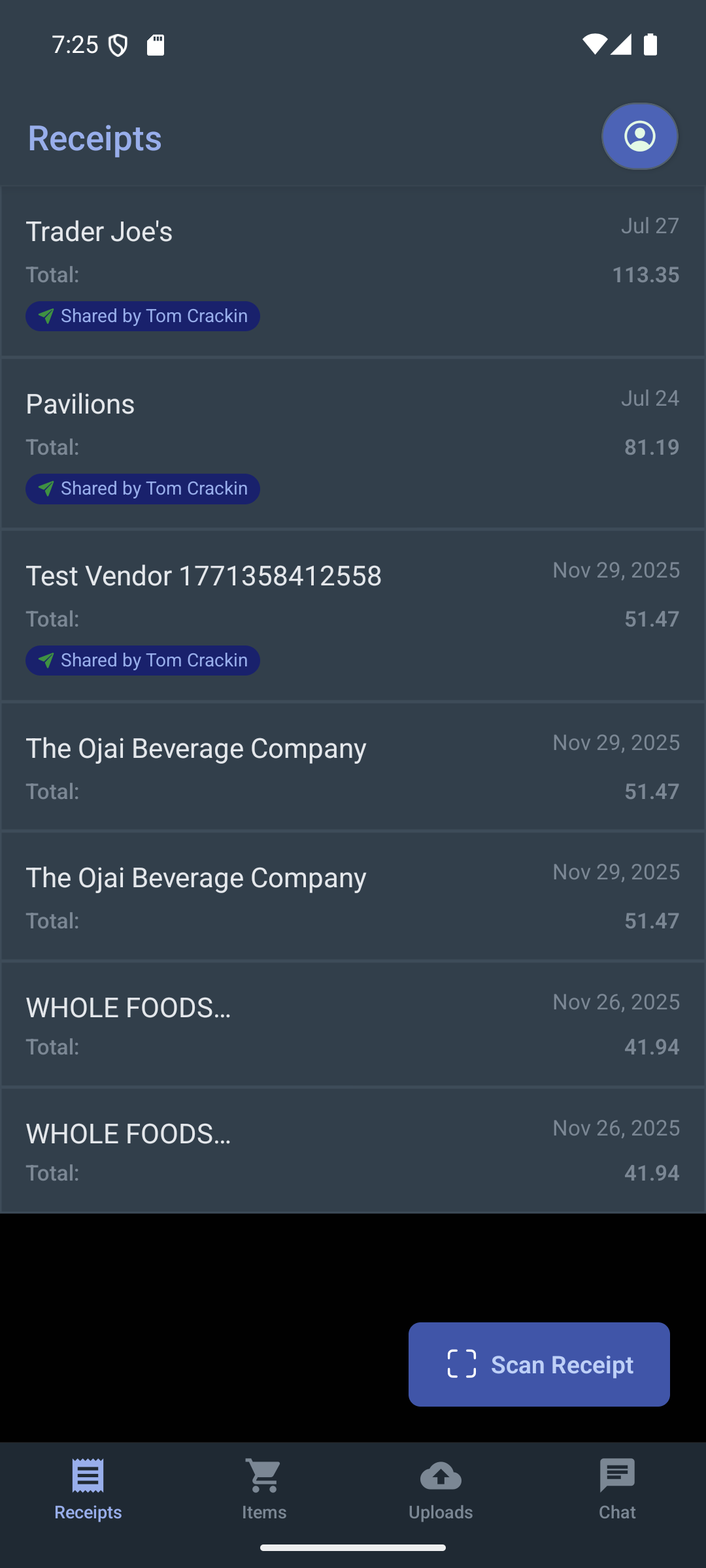
The Receipts tab shows all your scanned receipts, sorted with the most recent first. Each card shows the vendor name, date, and total amount.
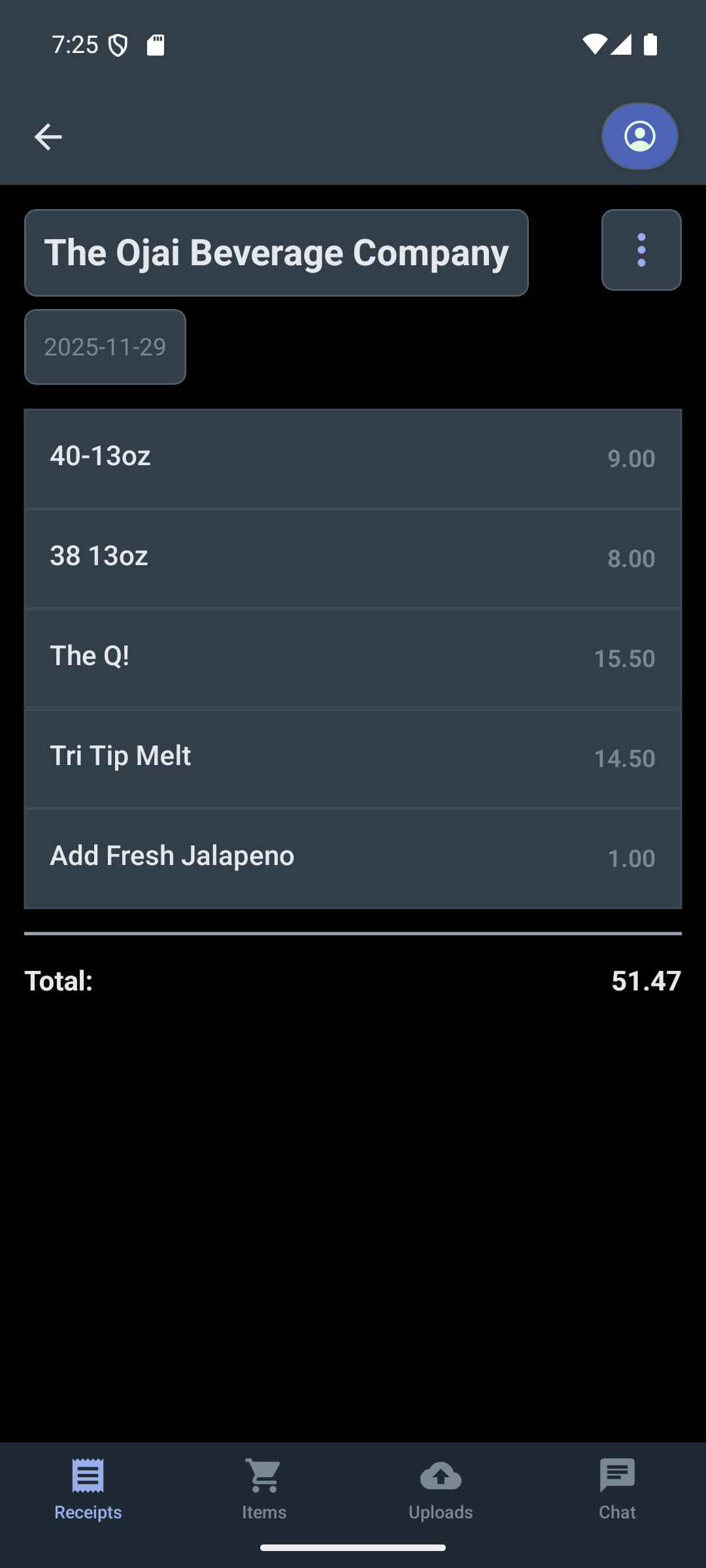
Tap a receipt to see the full detail view, including the vendor, date, itemized list, and total. Tap any field to edit it.
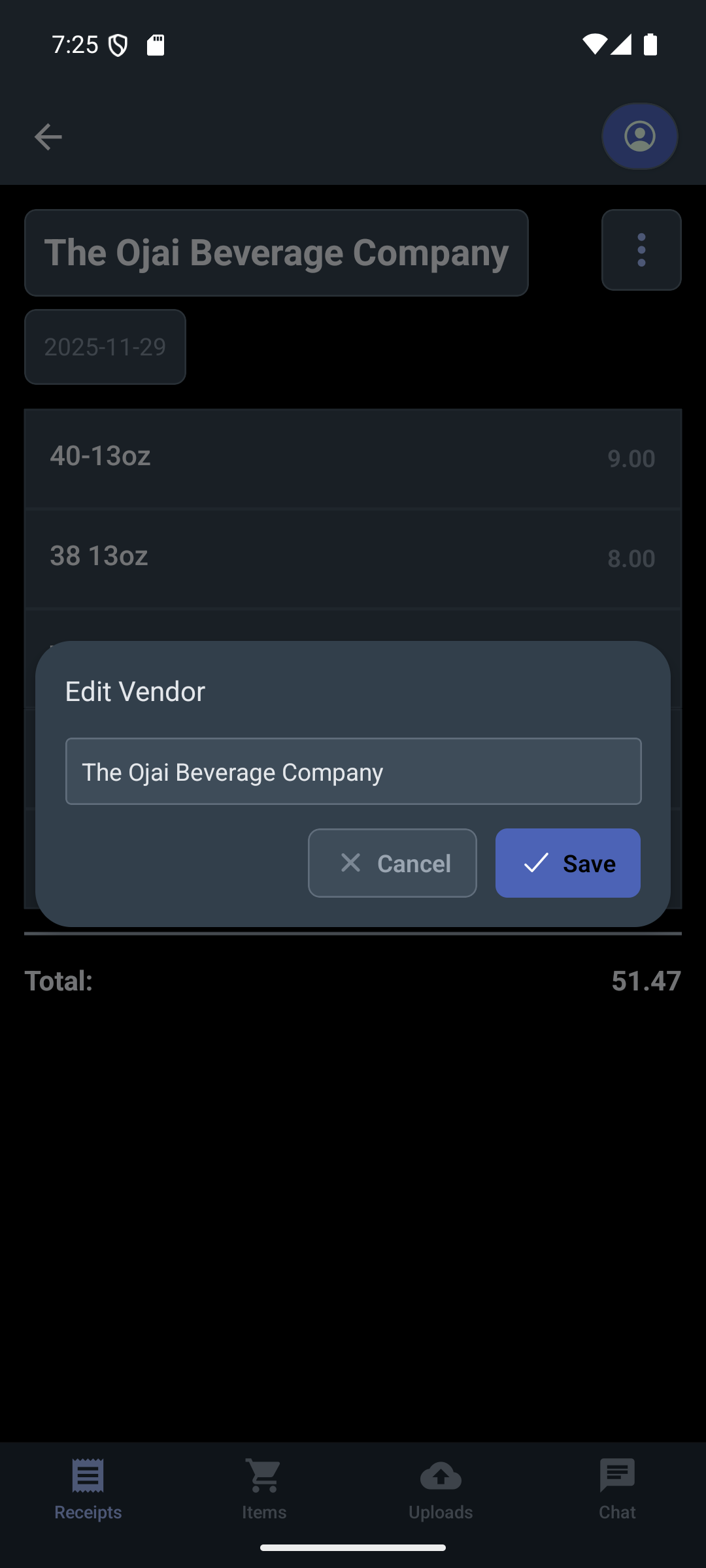
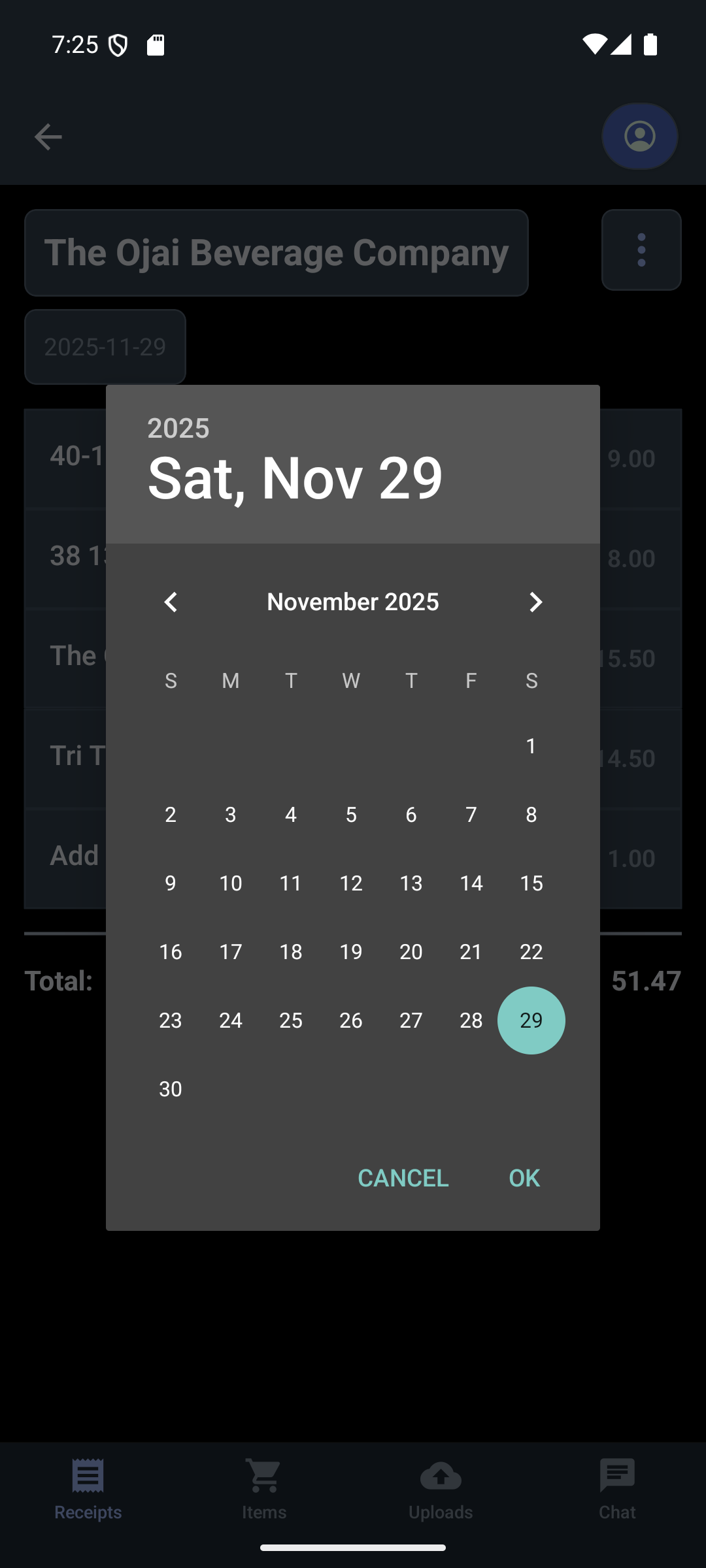
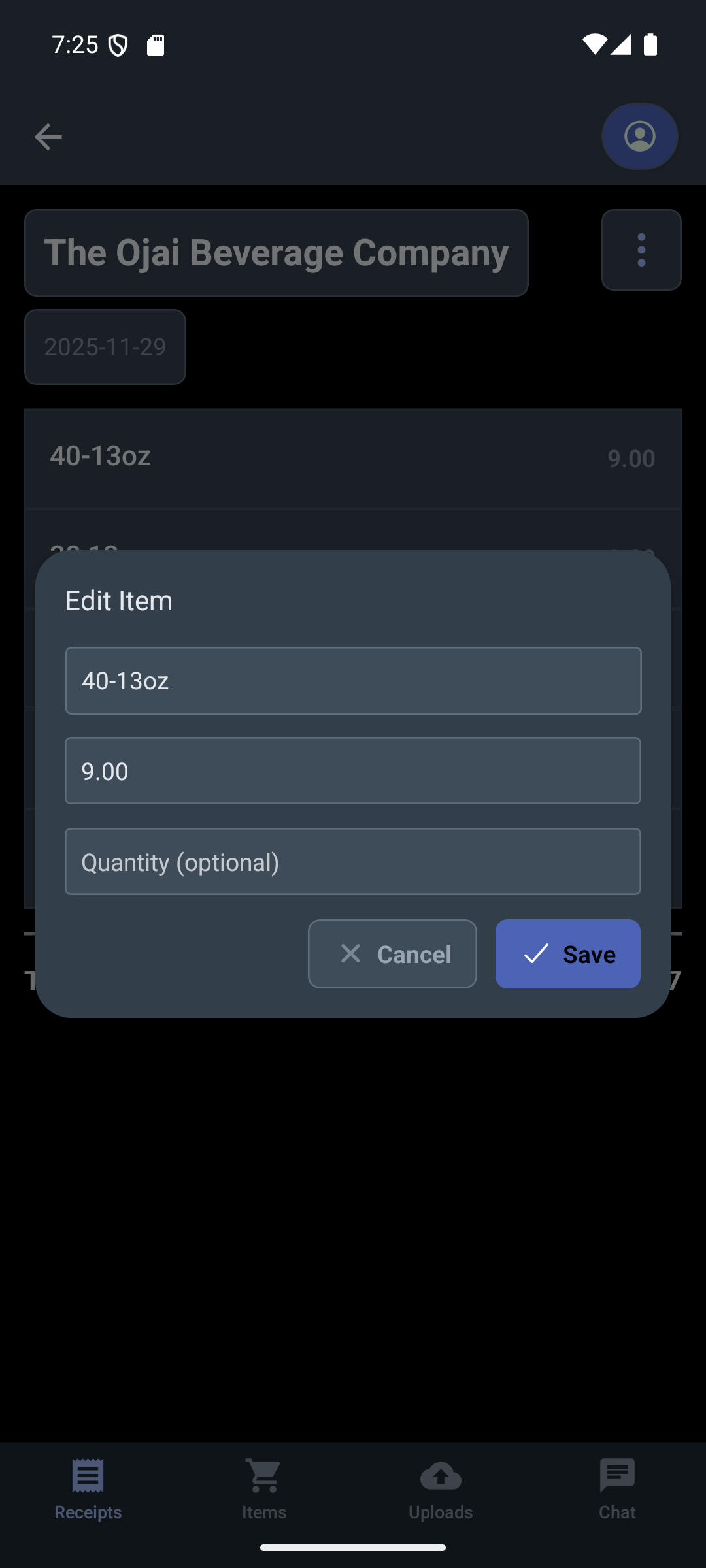
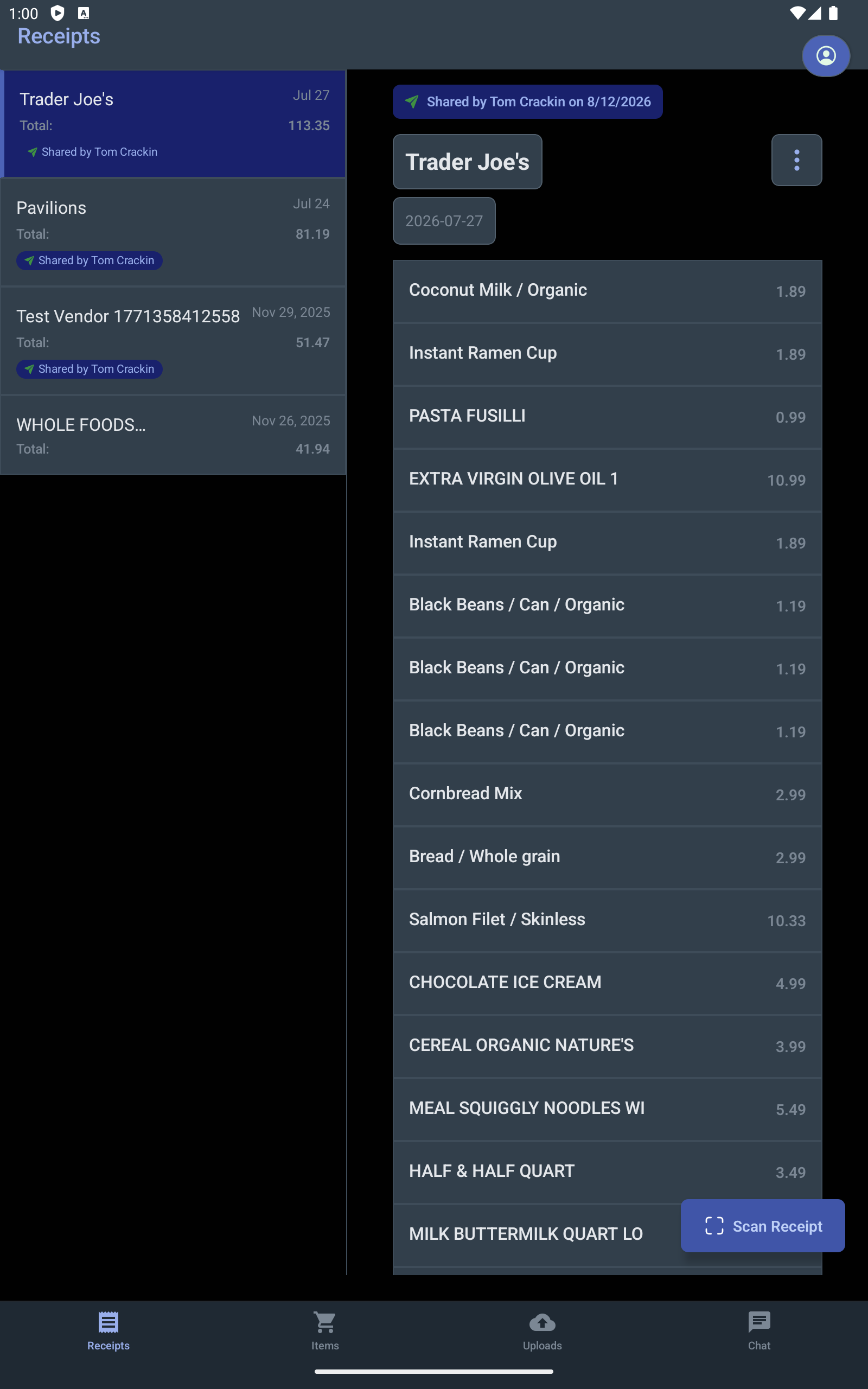
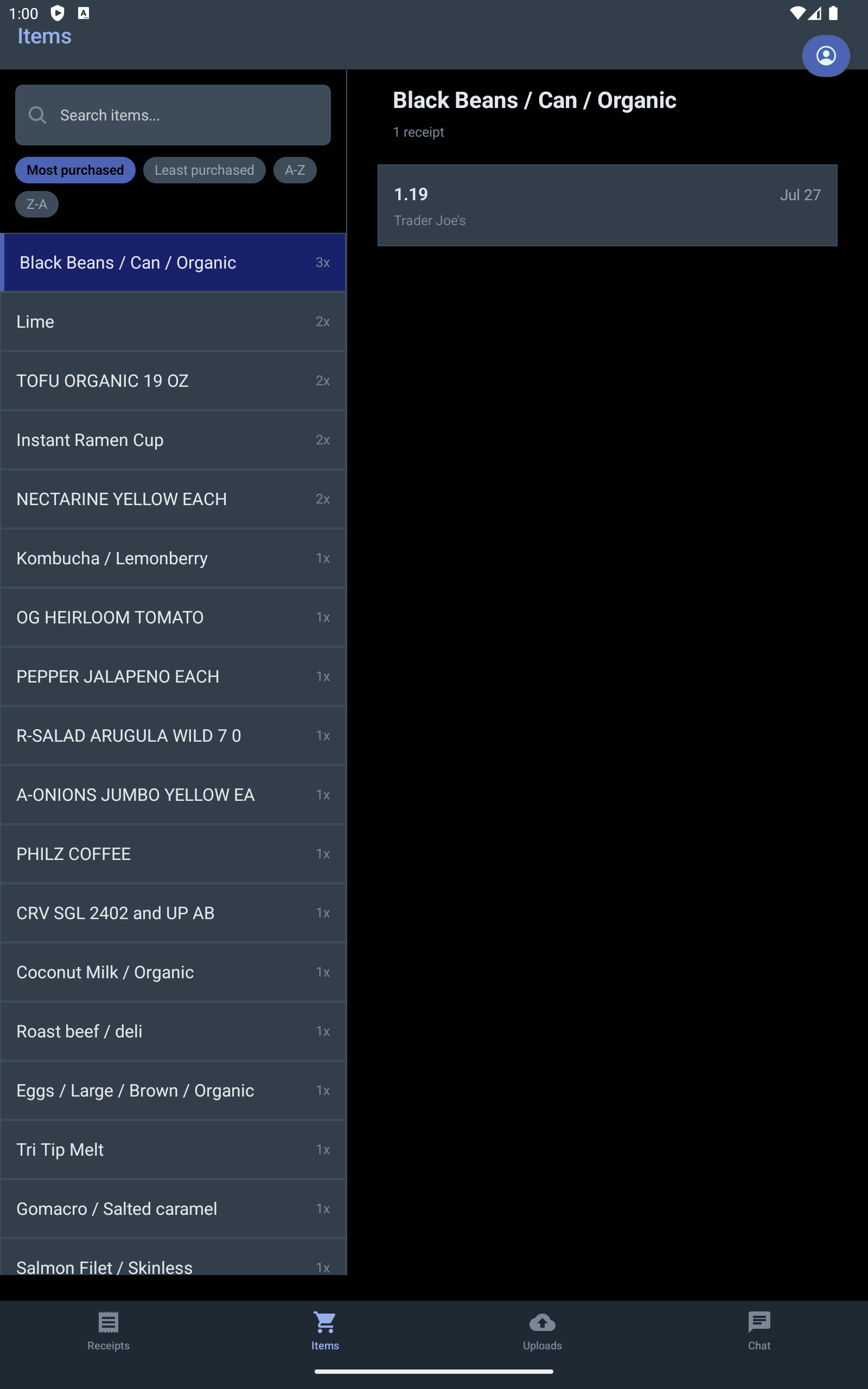
On tablets, the receipt list and detail appear side by side in a master-detail layout.
Items
The Items tab aggregates all items across your receipts. Use the search bar to find specific items by name, and sort by how often you’ve bought them — most or least purchased — or alphabetically.
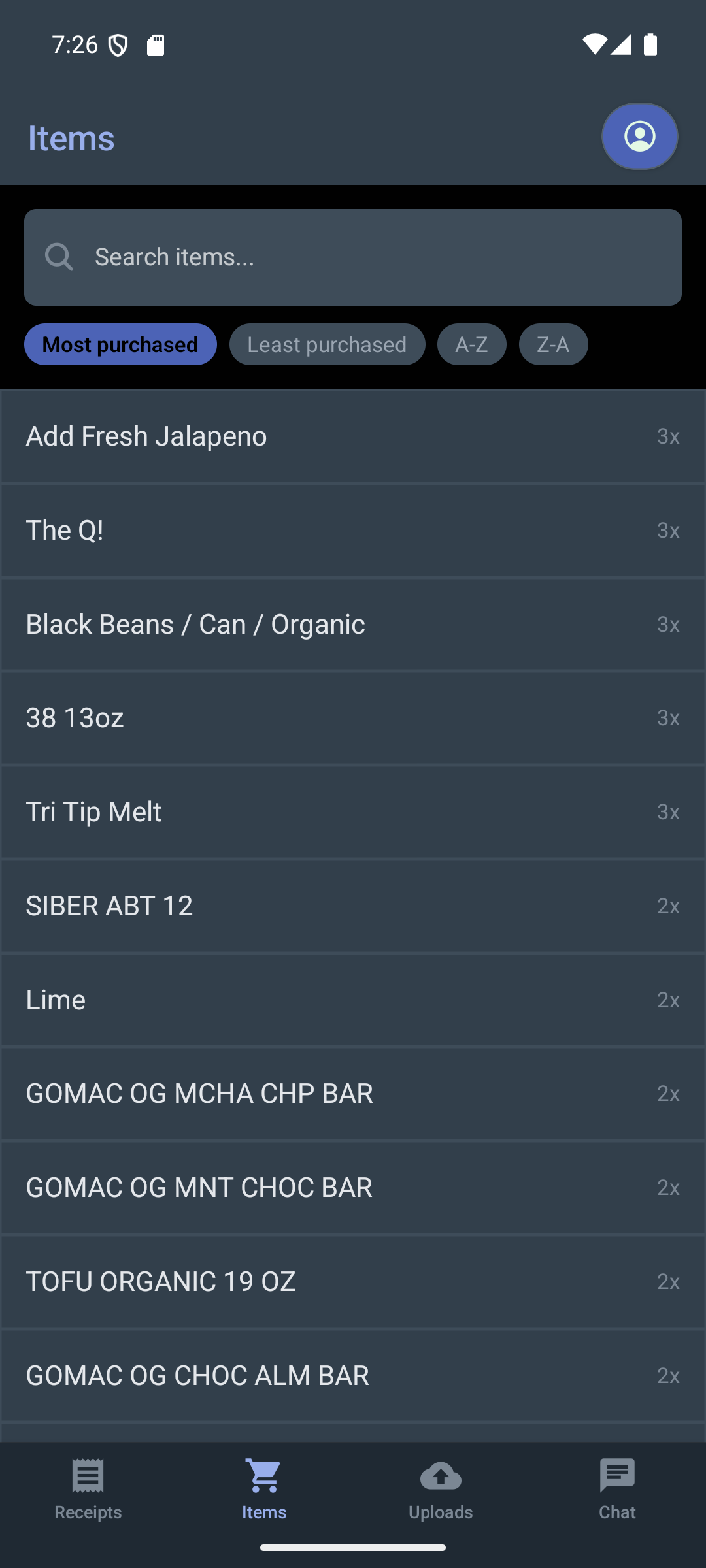
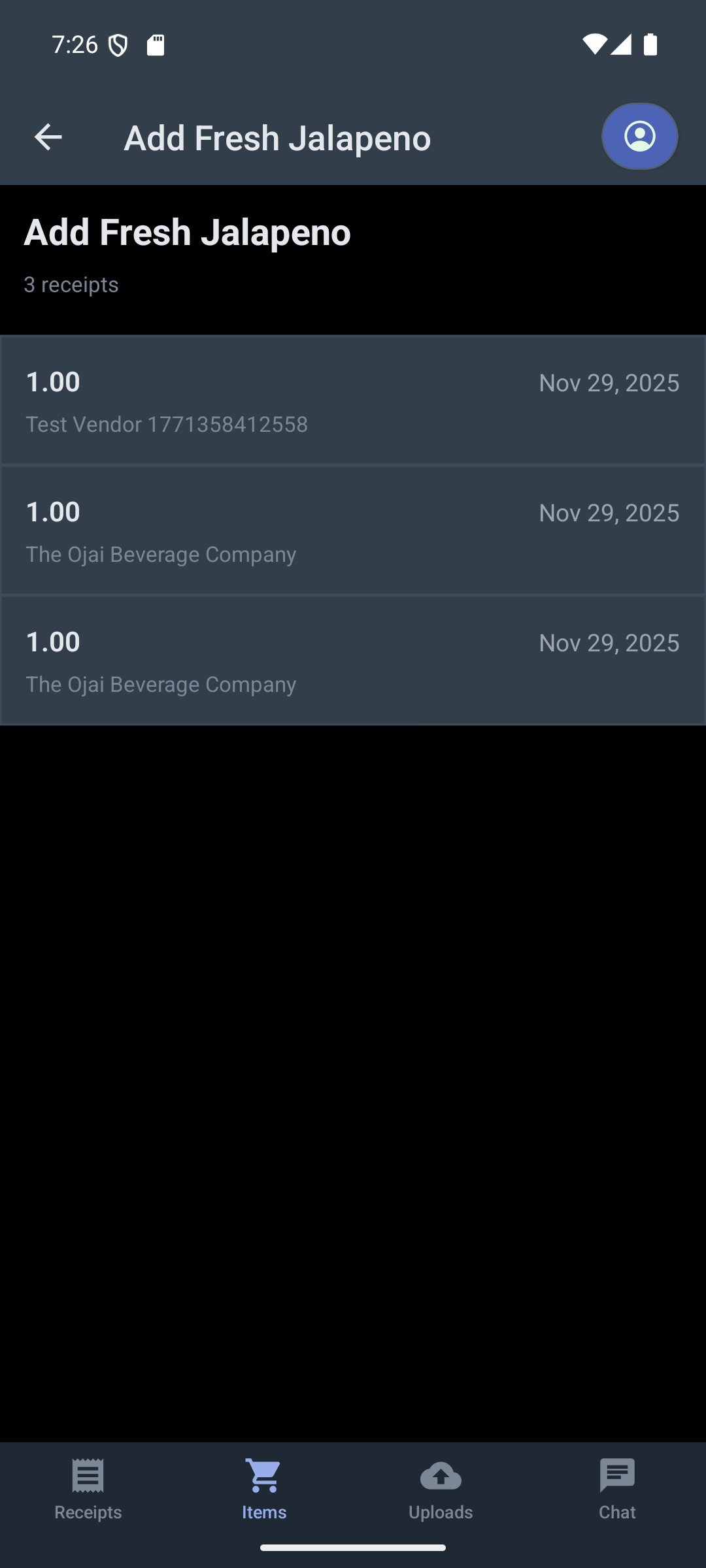
Tap an item to see its detail view, including every receipt it appears on and its price history.
On tablets, items use the same master-detail layout for side-by-side browsing.
Uploads
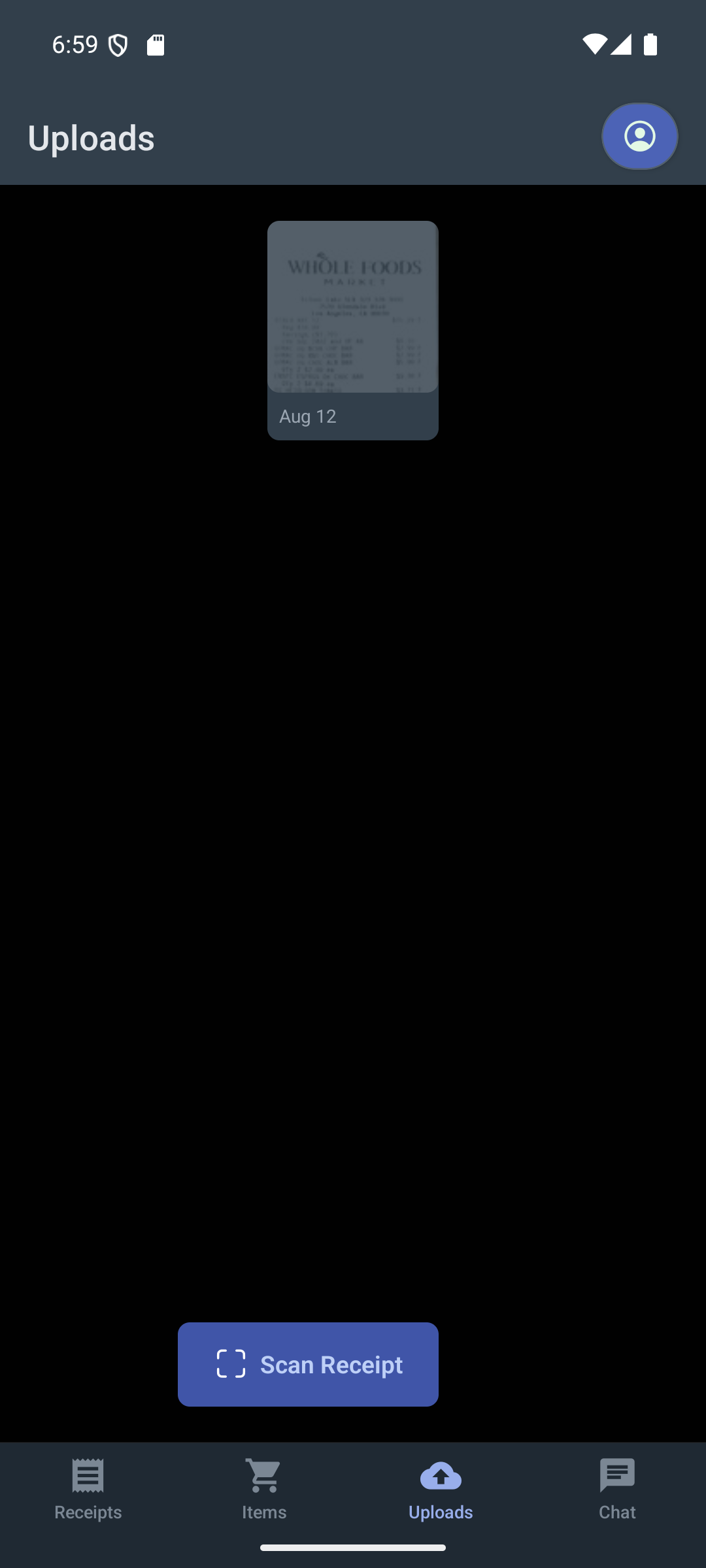
The Uploads tab shows thumbnails of all your uploaded receipt images. Tap a thumbnail to view the original scan or to re-process it.
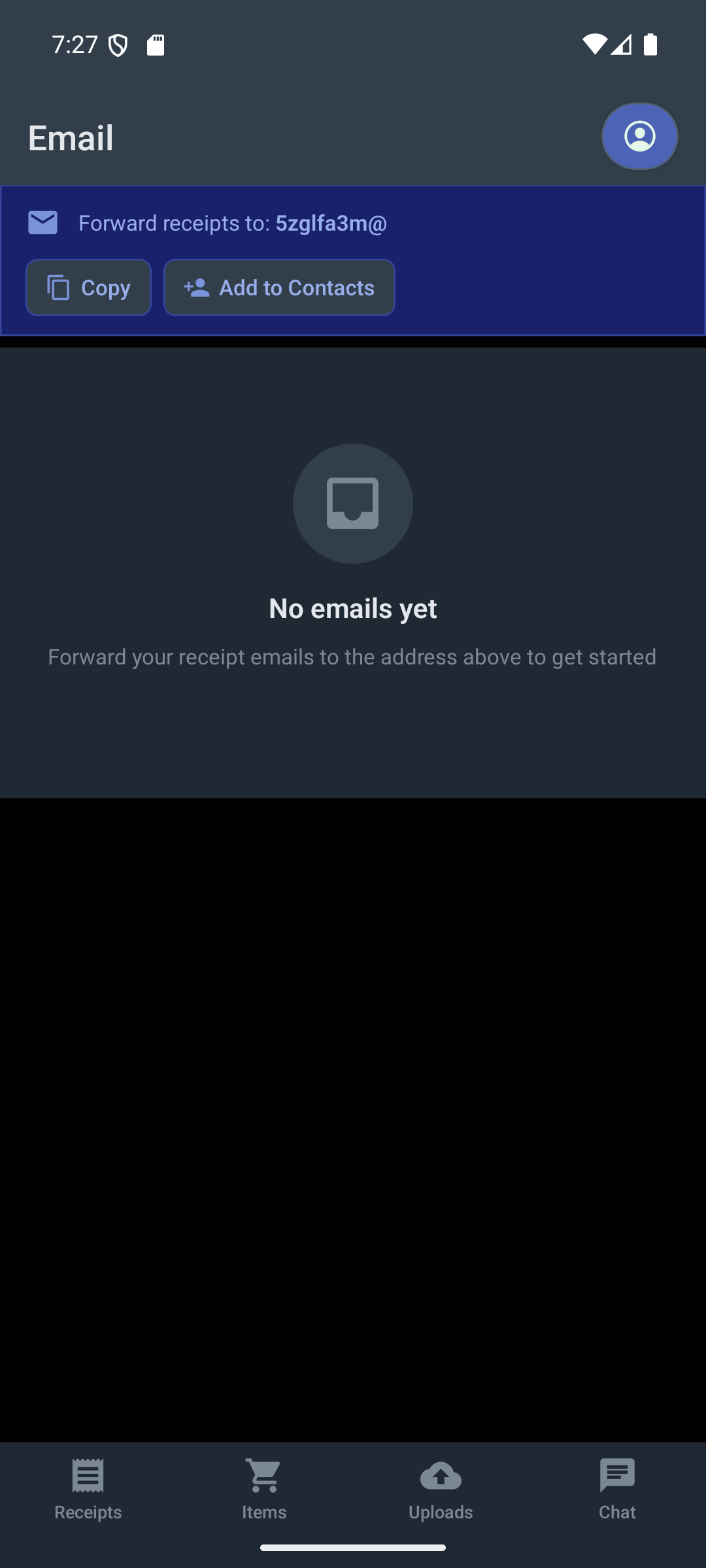
Crackin’ Receipts gives you a private forwarding address, so receipts that arrive by email can go straight into your account without being re-scanned. Open the account button in the top-right corner and tap Email to find it. Tap Copy to grab the address, or Add to Contacts to save it under a name you’ll remember when you’re forwarding from your mail app.
Friends
Crackin’ Receipts lets you connect with other people so you can send receipts back and forth. Open the account button in the top-right corner and tap Friends to manage everyone you’re connected to. Tom Crackin is there from day one — he’s the friend your account starts with, and a good way to try sharing before you’ve invited anyone.
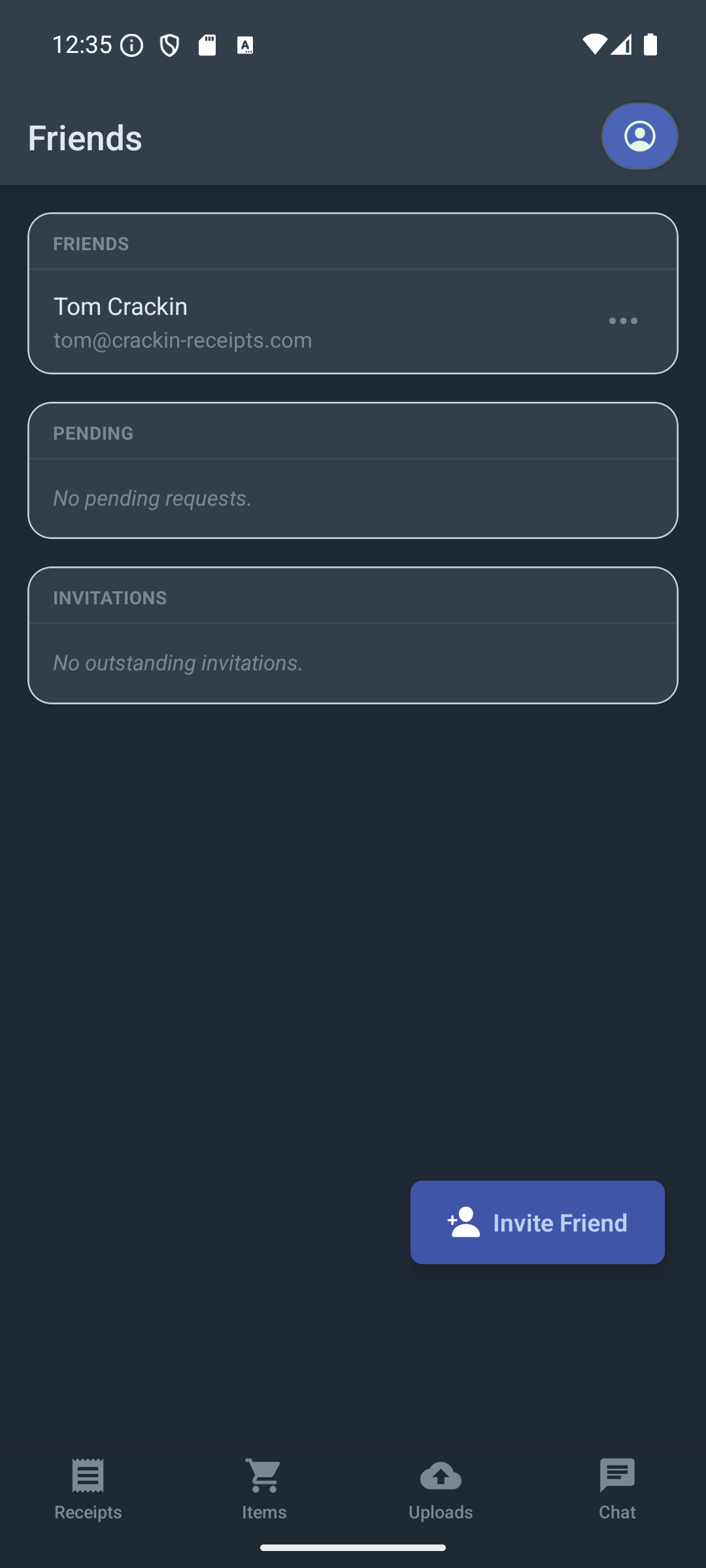
The screen has three sections:
- Friends — everyone you’re already connected to. Tap the ⋯ button next to a name to remove them.
- Pending — friend requests waiting on a decision. Requests sent to you have Accept and Decline buttons; requests you’ve sent show as “Awaiting reply” until the other person responds.
- Invitations — email invitations you’ve sent to people who don’t have an account yet, along with the date each one expires. Tap the × to revoke one.
Adding a friend
Tap Invite Friend and enter an email address. What happens next depends on whether that address already has a Crackin’ Receipts account:
- They already have an account — they get a friend request, which shows up in their Pending section for them to accept or decline.
- They don’t have an account yet — they get an emailed invitation with a link that opens the app (or takes them to the store to install it first). The link is good for 14 days, and signing up with the invited email address automatically connects the two of you.
Whenever someone sends you a friend request, a badge appears on the account button so you know there’s something waiting. Declining a request is permanent, so the sender can’t send you another one.
Sharing Receipts
Once you’re friends with someone, you can send them any receipt. Open the receipt, tap the ⋮ menu in the top-right corner, and choose Share, then pick the friend you want to send it to.
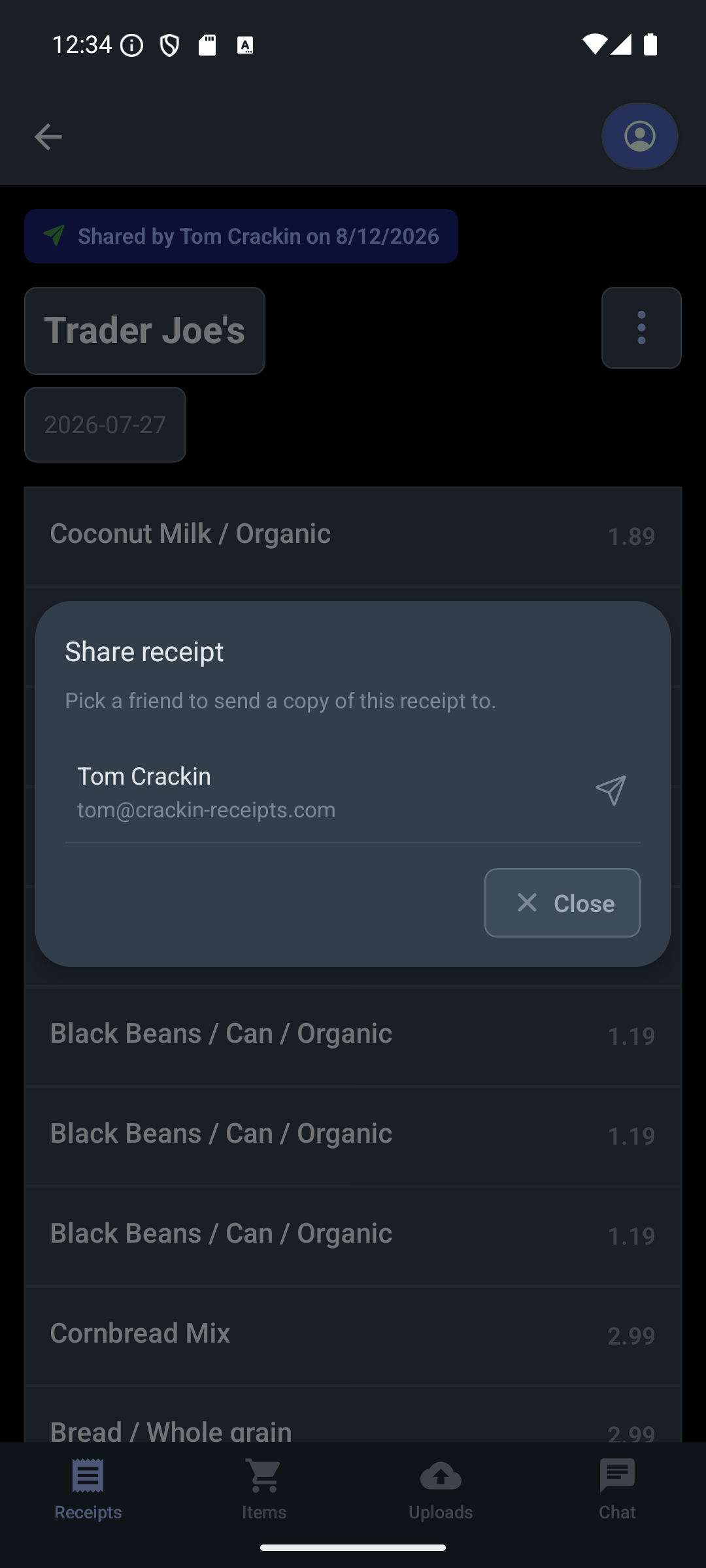
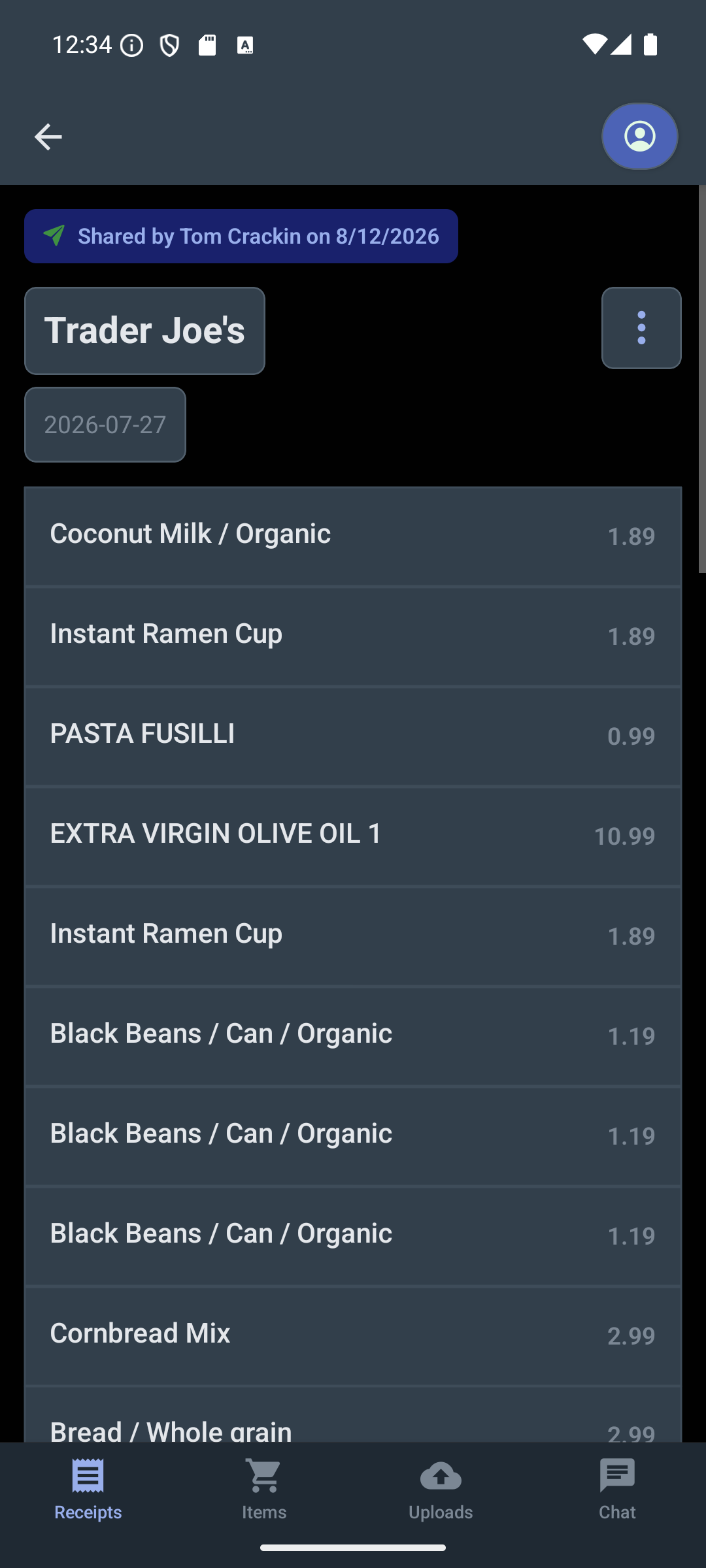
Your friend gets their own copy of the receipt — the vendor, date, itemized list, and total — and it shows up in their Receipts tab alongside everything else. Because it’s a copy, either of you can edit it without changing the other person’s version, and its items roll into their Items tab and Chat answers just like a receipt they scanned themselves. The original photo stays in your account.
Shared receipts are labelled so nobody has to guess where they came from: the detail view carries a Shared by badge with the sender’s name and the date, and the receipt list shows a smaller version of the same badge.
To review what you’ve sent, open the account button and tap Sent shares. Each entry shows who you sent the receipt to, when you sent it, and its status — Pending while the copy is being delivered, Completed once it lands in their account, or Source missing if the original receipt was deleted before the copy went out. Tap any entry to jump back to the receipt you shared.
Chat
The Chat tab lets you ask questions about your receipts using natural language. Ask things like “How much did I spend on groceries last month?” or “What was the most expensive item I bought?”